Run your monthly B2C consolidation
Last reviewed: 2026-08-03 · Last updated: 2026-11-25
Scope: The repeatable month-end procedure for consolidating B2C receipts: selection, review, Convert & Submit, and verification in the Consolidation Log.
Update: Corrected the consolidation steps: the Bulk Consolidate button and its confirmation, the choice between Convert & Submit and Convert, and that submission carries on after you close the page. Added screenshots.
If you run a B2C business, most of your sales end the month as one consolidated e-invoice instead of hundreds of individual ones. New to the concept? Start with what consolidated invoices are. This guide is the procedure: the same steps, in the same order, every month.
The monthly rhythm
During the month, receipts flow into JomeInvoice from your POS, accounting system, or uploads, and collect in your invoice module as Inbound Drafts. Customers who want a proper e-invoice request one through your link or QR code. JomeInvoice turns each request into an individual e-invoice when your request scheduler runs, and that receipt drops out of the consolidation pool - there is nothing for you to approve. A request for a receipt you have already put into a consolidation is rejected, so make sure waiting requests have been processed before you consolidate.
After the month ends, you consolidate everything that remains and submit it to LHDN within 7 calendar days.
Step 1 - Choose the month's receipts
-
In the left menu, open Consolidation log. The page is headed Consolidation Module and opens on the Inbound Receipts tab.
-
Set the filters:
- Status - Draft, for the normal monthly run.
- Issued Date or Date Created - set the range to the month you are consolidating, for example 1 to 31 August.
- Currency and Issuer/Branch - one currency per consolidation. If you consolidate by filter without ticking receipts, run one branch at a time.
- Optionally, Invoice Type, Invoice Source, Module, or Invoice Affix Type.
-
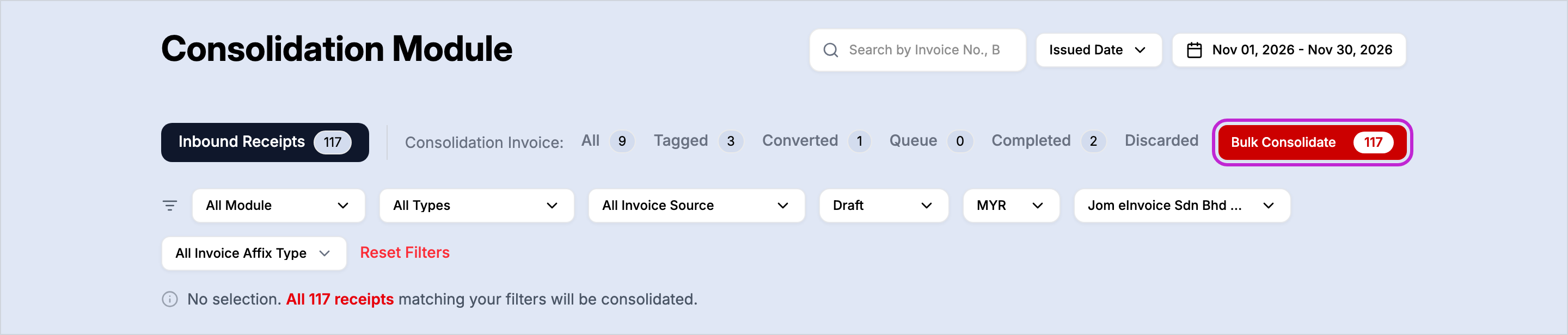
Either tick specific receipts, or tick nothing to consolidate everything that matches your filters.
-
Click Bulk Consolidate. The confirmation says whether the receipts you ticked or every receipt matching your filters will be consolidated. Check it, then click Bulk Consolidate again.
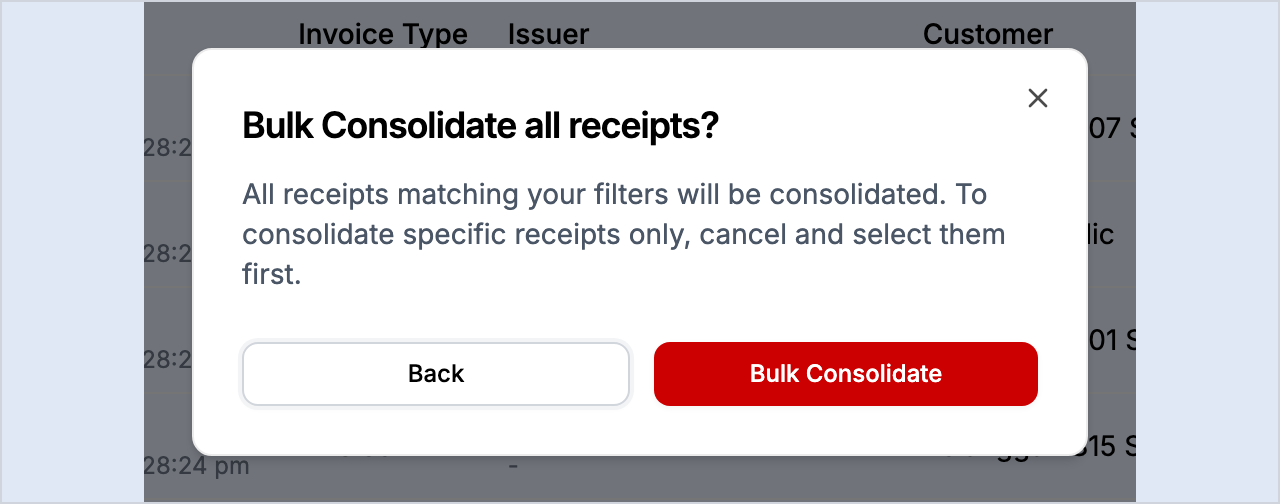
You can include Invoices, Credit Notes, Debit Notes, and Refund Notes in the same run. JomeInvoice keeps each invoice type and invoice source in its own consolidated e-invoices.
This demo walks through Steps 1 to 4 in the product.
Step 2 - Review the tagged receipts
The Convert Consolidated e-Invoice page opens and JomeInvoice tags the matching receipts. When tagging finishes:
- The Consolidation Invoices table shows one row per invoice type and source, with the Total Selected Invoices and Total Amount. The GRAND TOTAL AMOUNT row adds them up.
- Receipts worth RM10,000.00 or more are left out automatically. A receipt in another currency is measured by its ringgit value: its total payable multiplied by its exchange rate. These need individual e-invoices instead.
- To take specific receipts out, click View on a row, then Remove Receipt.
- To change the selection, click Edit, adjust the criteria, and click Proceed.
Receipts that already became individual e-invoices through a customer request are excluded automatically and will not appear in the batch.
Step 3 - Choose the format
In Convert Setting, choose the Consolidated Format:
- Range of Receipt/Invoices per line item - receipts are grouped into line items of up to the Consolidated Range Limit (1,000 by default).
- Single Receipt/Invoice per line item - each receipt becomes its own line, for a more granular breakdown.
- All Receipts/Invoices in one line item - the whole consolidation is one line item.
Step 4 - Convert & Submit
Click Convert & Submit. Each row is converted into one or more consolidated e-invoices, and JomeInvoice submits them to LHDN as soon as they are converted. JomeInvoice takes you to the Queue tab. The work carries on in the background, so you can close the page or sign out.
To convert now and submit later, click the arrow beside the button and choose Convert, then click Convert. The consolidations wait on the Converted tab until you click Submit on each.
Not ready to submit? Close the page with the X at the top and confirm Exit. The consolidation waits on the Tagged tab. Or click Discard to send its receipts back to Draft.
Once submitted to LHDN, a consolidation can't be changed. An accepted one can only be cancelled within 72 hours of validation. Check the totals and the format before you click Convert & Submit.
Step 5 - Verify
In the Consolidation Log:
- Open the All tab and check that nothing from this run is still at Converted or in Queue. While a consolidation is being converted, its status reads Converted (Processing). Once it is converted, it reads Converted, and one sent with Convert & Submit usually moves on within about a minute. If one has read Converted for several minutes, it was not submitted - see Fixing consolidation problems.
- Open the Completed tab and set the Result filter to Failed. Anything listed was rejected by LHDN - see Fixing consolidation problems.
- In the Outbound section of your invoice module, confirm the consolidated e-invoices reached Valid.
The consolidated e-invoice is issued to the buyer "General Public" - that is the format LHDN requires, not a mistake.
Rules worth remembering
- Submit within 7 calendar days after the month ends.
- LHDN does not allow a single transaction above RM10,000 to be consolidated, and JomeInvoice leaves out any receipt worth RM10,000.00 or more, using the ringgit value for other currencies. Those receipts need individual e-invoices, so collect those buyers' details at the point of sale.
- LHDN excludes certain business activities from consolidation entirely (for example, motor vehicle sales and flight tickets). If you are unsure whether this affects you, check LHDN's e-invoice guideline or ask your tax advisor.
- Missed a month? Run the same flow with the date range set to that month, and submit as soon as you can.